
- Articles
FileMaker Server Data Sources
Lasso Server communicates with FileMaker Server 7, 8, 9, 10, or 11 Advanced or FileMaker Server 11 through its built-in XML interface. Other products in the FileMaker product line such as FileMaker Pro are not supported.
Requirements
FileMaker Server 1 for Windows or Mac OS X (or FileMaker Server 11 Advanced). Or, FileMaker Server Advanced 7 or 8 for Windows or Mac OS X. The Web Publishing Engine must be installed and each database must be configured according to the instructions in the following section.
The latest versions of FileMaker Server can be downloaded from FileMaker, Inc.’s Web site at http://www.FileMaker.com/.
Set up FileMaker Server 11 for use with Lasso
This section describes setting up FileMaker Server 11 or FileMaker Server 11 Advanced for use with Lasso Server.
Configure FileMaker Server 11:
Follow the instructions included with FileMaker Server 11 carefully. Setting up FileMaker Server 11 is considerably easier than setting up earlier versions of Filemaker Server.
- Make sure that the Web Serving options are turned on and that the XML interface is enabled.
- The databases which are to be accessed by Lasso must be in the FileMaker Server Data/Databases/AutoUpdate folder and must be Open within FileMaker Server.
- Each database to be accessed by Lasso must have the fmxml keyword added to the Extended Privileges section of the Accounts & Privileges dialog box. The username and password which are entered into Lasso Administration must use a Privilege Set which has access to this extended privilege.
- FileMaker Pro database security in Lasso Server is only as secure as the Publishing Engine setup. It is possible for Web browsers to communicate directly with the Publishing Engine, which circumvents Lasso security. It is strongly recommended that the security features of FileMaker Pro be used to secure accessible databases.
- It is strongly recommended that only a single IP address be permitted to access the Publishing Engine which represents the machine on which Lasso Server operates.
Set up FileMaker Server 7 or 8 Advanced for use with Lasso
This section describes setting up FileMaker Server Advanced for use with Lasso Server.
Configure FileMaker Server Advanced:
Follow the instructions included with FileMaker Server Advanced carefully. There are several non-obvious steps in this process which require reading this document to set up properly. Configuring FileMaker Server Advanced from scratch is beyond the scope of this documentation, but some common pitfalls are listed below.
- Make sure both FileMaker Server and the FileMaker Server Advanced Publishing Engine are installed. The machine with the Publishing Engine must be running a supported Web server.
- Configure FileMaker Server with a Client Services identifier and passcode. Enter this same identifier and passcode in the Web Publishing Administration Console.
- Ensure XML Publishing is turned on in the Web Publishing Administration Console.
- The databases which are to be accessed by Lasso must be in the FileMaker Server Data/Databases folder and must be Open within FileMaker Server.
- Each database to be accessed by Lasso must have the fmxml keyword added to the Extended Privileges section of the Accounts & Privileges dialog box. The username and password which are entered into Lasso Administration must use a Privilege Set which has access to this extended privilege.
- FileMaker Pro database security in Lasso Server is only as secure as the Publishing Engine setup. It is possible for Web browsers to communicate directly with the Publishing Engine, which circumvents Lasso security. It is strongly recommended that the security features of FileMaker Pro be used to secure accessible databases.
- It is strongly recommended that only a single IP address be permitted to access the Publishing Engine which represents the machine on which Lasso Server operates.
Creating Connections to FileMaker Server Hosts
Log in to the Datasources page in Lasso Administration (http://localhost/lasso9/Admin/ds) to see a list of available datasources.
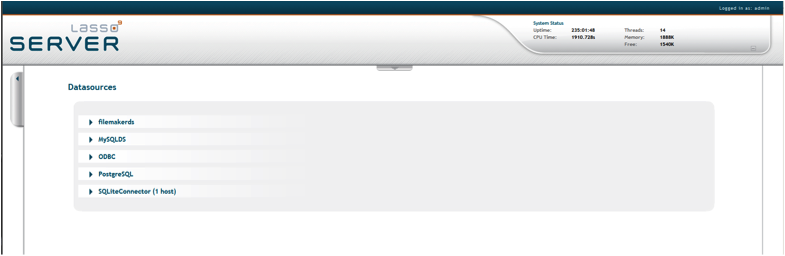
The Datasources page in Lasso Administration displays all data source connectors available in Lasso, and allows the administrator to add new hosts. A host is a computer that serves the databases with which Lasso Server communicates.
To see all available hosts for a connector, click the arrow on the left of the connector name to see the expanded list. If there are no hosts, only a link to Add Host will listed.
Adding Data Source Hosts
Selecting the Add Host button expands the window to allow entry of the host detail, allowing the Administrator to add a new FileMaker data source host to a selected data source connector.
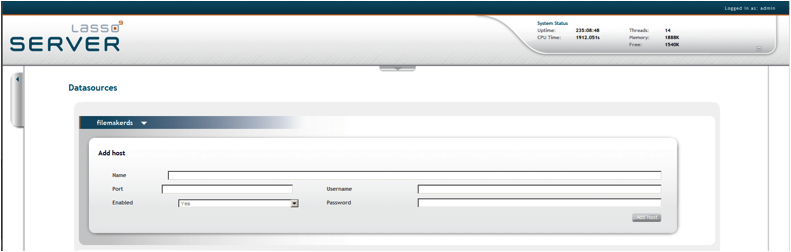
To add a new FileMaker Server host:
- Enter the IP address or domain name of the host in the Name field. This is the address of the machine running the data source application.
- Enter the TCP/IP port for the host in the Port field. This is commonly 80 for FileMaker Server. See the FileMaker Server documentation for information on where to find or set this in the data source.
- Select Enabled from the Status pull-down menu to enable the host.
- Enter a username for the host in the Username field. Lasso Server will connect to the data source and all databases therein using this username by default. If the host does not require a username, then leave this field blank.
- Enter a password for the host in the Password field. Lasso Server will connect to the data source and all databases therein using this password by default. If the host does not require a password, then leave this field blank.
- Select the Add Host button.
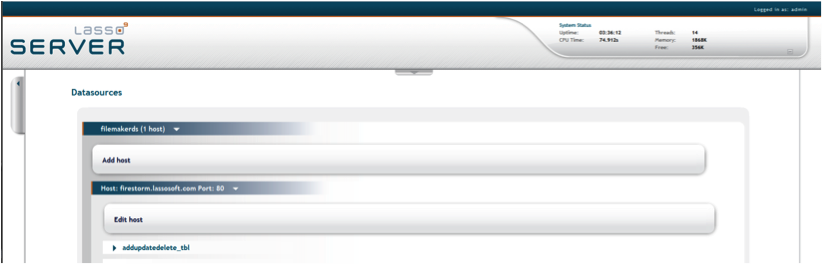
Once the host is added, the new host appears beneath the expanded connector listing. To edit the host, expand the host listing and select the Edit Host button.
Specifying FileMaker Server Hosts in Inlines
Setting up a data source host and properly configuring Lasso security is the best way to ensure that access to the data source is fully controlled. However, it can sometimes be beneficial to access a data source host without a lot of configuration. This section describes how to construct an inline which access a FileMaker Server data source host. See the Lasso Language Guide for full details about inline host specification.
To access a FileMaker Server host directly in an inline:
- The -Host parameter can be used to specify all of the connection parameters for a data source host.
- The -Host array should contain the following elements:
- The -Datasource should be specified as filemakerds.
- The -Name should be specified as the URL of the machine hosting FileMaker Server.
- The -Port is optional and defaults to 80.
- The -Username and -Password should be specified.
For example, the following code shows how a connection to a FileMaker Server data source hosted on the same machine as Lasso might appear:
inline( -findAll,
    -host=array(
        -datasource='filemakerds',
        -name='127.0.0.1',
        -port='80',
        -username='user',
        -password='password'),
    -database='database_name',
    -table='table_name' ) => {^

    found_count

^}
Troubleshooting
If there are no databases or tables listed, the following links are the same ones used in Lasso and may provide some insight. Fill in {filemaker host} and {db name} for your particular situation.
• http://{filemaker host}/fmi/xml/FMPXMLRESULT.xml?-dbnames
• http://{filemaker host}/fmi/xml/FMPXMLRESULT.xml?-db={db name}&-layoutnames
If either url returns an error code other than 0 or fails in any way, Lasso will be unable to submit requests to FileMaker. Consult your FileMaker documentation on how to proceed.
See also a document that includes more FileMaker server tips, FileMaker-Quick-Start.
Comments
Not AutoUpdate folder
This article says: The databases which are to be accessed by Lasso must be in the FileMaker Server Data/Databases/AutoUpdate folder and must be Open within FileMaker Server.
However, the pdf documentation for Lasso 8.6 (which should be the same as Lasso 9) correctly shows: The databases which are to be accessed by Lasso must be in the FileMaker Server Data/Databases folder and must be Open within FileMaker Server.
The AutoUpdate directory is reserved for plugins, third-party extensions
to distributed Filemaker Pro clients.
 Please note that periodically LassoSoft will go through the notes and may incorporate information from them into the documentation. Any submission here gives LassoSoft a non-exclusive license and will be made available in various formats to the Lasso community.
Table of Contents
Categories
Random User Tips
Segment your methods by using a standard name format
category_method_desc such as
client_address
or
client_formmethod
This is easier for you to read, and easier if you will be passing your code to someone else (like adding it to TagSwap)
For more Articles, Methods, Tags, References and Tutorials see LassoDocs
LassoSoft Inc. > Home
©LassoSoft Inc 2015 | Web Development by Treefrog Inc | Privacy | Legal terms and Shipping | Contact LassoSoft